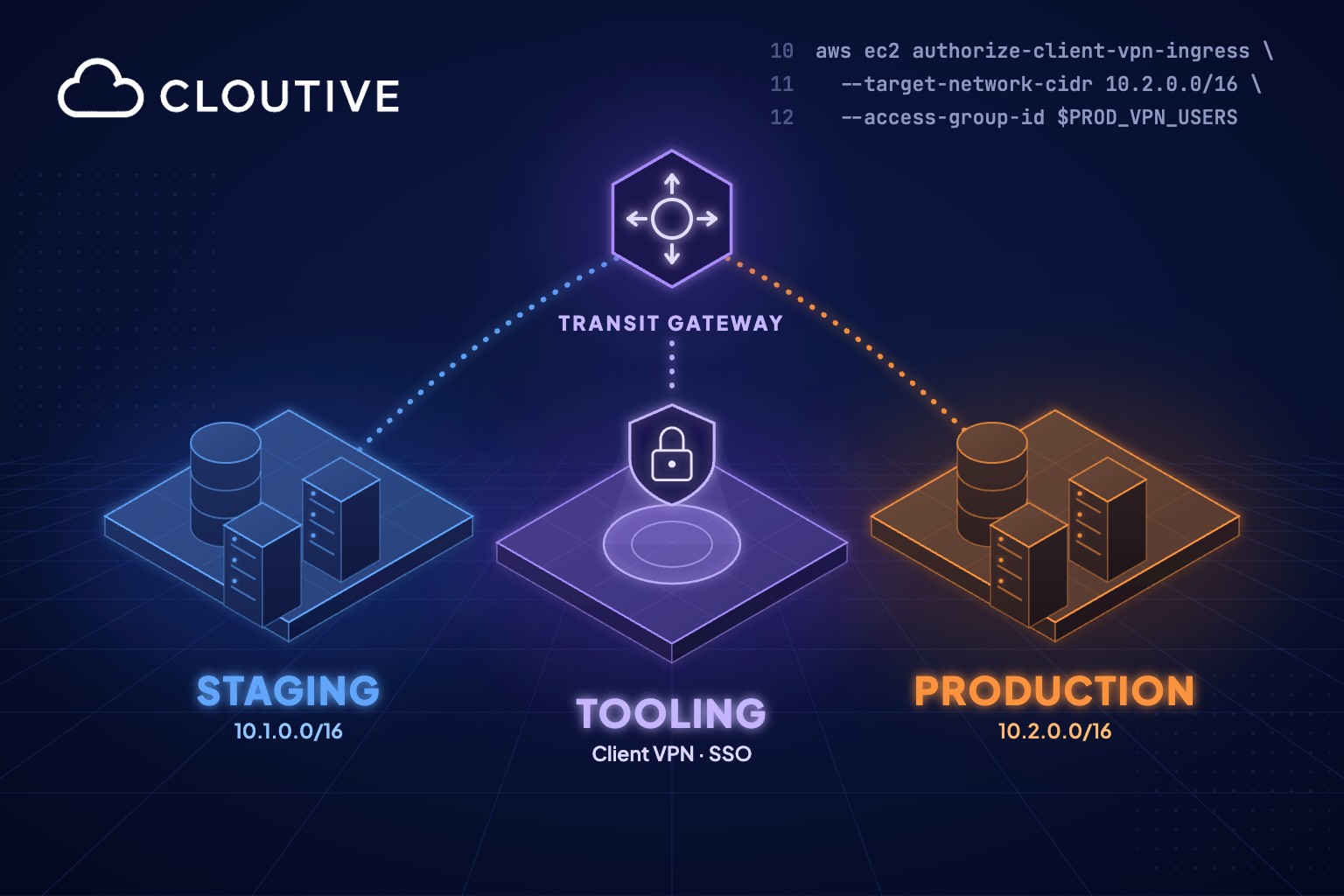
Most AWS estates end up with several accounts, usually tooling, staging and production to start with. That separation is good for security and cost control, but engineers still need to reach private databases and instances in each of those accounts. This post shows how to give them one VPN connection, one SSO sign-in and group-based access to every account, without giving a single database a public IP address.
At a glance
- One AWS Client VPN endpoint lives in a Tooling (network) account. Staging and Production connect to it through a Transit Gateway that the Tooling account shares with AWS RAM.
- Engineers sign in with their AWS IAM Identity Center account and MFA. Their group decides which VPCs they can reach.
- You don’t need public database endpoints or bastion hosts, and a new account joins by attaching its VPC to the Transit Gateway.
The first half of this post is about why and when to use this setup. The second half is the build, step by step.
Why access gets harder as you add accounts
AWS recommends separate accounts per environment. A mistake in staging can’t touch production, and permissions and costs stay apart. The side effect is that access gets harder. A developer needs to query the staging database, or an on-call engineer needs to log in to a production instance at 2 a.m. Teams usually solve this in one of three ways:
| Common approach | What goes wrong |
|---|---|
| Public endpoints with IP allow-lists | Databases reachable from the internet. Allow-lists break every time someone works from a new location. |
| A bastion host in every account | More instances to patch and monitor, SSH keys to rotate, and per-person access that is hard to audit. |
| A separate VPN endpoint per account | Several endpoints to pay for and configure. Users switch profiles to move between environments. |
The business feels this when people join or leave, and during audits, when nobody can quickly say who could reach production last quarter. Meanwhile, every new account adds another way in.
The business case for a central Client VPN
Putting all engineer access behind one Client VPN endpoint in a network account solves most of this.
Databases and instances keep private IP addresses only. The AWS-managed VPN endpoint is the only thing reachable from the internet, and nobody gets through it without an SSO sign-in and MFA.
Access follows IAM Identity Center groups. When someone leaves, you remove them from their groups and end their VPN session, and they lose access to every account at once. Onboarding works the same way: a new engineer is added to a group. A contractor can be in the staging group without ever getting a route to production.
For audits, the Client VPN connection logs in Amazon CloudWatch Logs show who connected, when and from which IP address. ISO 27001 and SOC 2 access reviews ask for that kind of evidence.
There’s also less to run. Client VPN and Transit Gateway are managed services, so there are no VPN servers or bastion hosts to patch, and the endpoint scales with the number of users. You pay per hour for subnet associations, connections and Transit Gateway attachments; there are no per-seat licences.
When to use it
This setup pays off once you have a few accounts and people who need more than a browser to do their work. Typical signs:
- You run three or more AWS accounts or VPCs with private resources people need to reach, such as databases, internal dashboards, EC2 instances or private Kubernetes API endpoints.
- You already use IAM Identity Center, or another SAML 2.0 identity provider like Microsoft Entra ID or Okta.
- Engineers connect with database clients, IDEs or SSH, not only over HTTPS.
- Access has to be controlled and logged for ISO 27001, SOC 2 or internal audits.
- You plan to add accounts, or you already have a Transit Gateway for shared services, on-premises links or central egress.
In some cases it’s more than you need:
| Situation | Better fit |
|---|---|
| You only need shell or port-forwarding access to a few instances | AWS Systems Manager Session Manager: no inbound network path, IAM-controlled, sessions can be logged |
| Users only need internal web applications | AWS Verified Access: per-application, zero-trust access without a VPN client |
| One account with one VPC | A Client VPN endpoint in that VPC. No Transit Gateway needed. |
| Two or three VPCs that will stay that way | VPC peering from the VPN VPC, which has no hourly attachment charge |
| Offices or data centres need a permanent link to AWS | AWS Site-to-Site VPN or AWS Direct Connect, attached to the same Transit Gateway |
Architecture overview
The setup uses three AWS accounts:
- Tooling (a dedicated networking account): hosts AWS Client VPN and the Transit Gateway.
- Staging: the pre-production environment.
- Production: the live, user-facing environment.
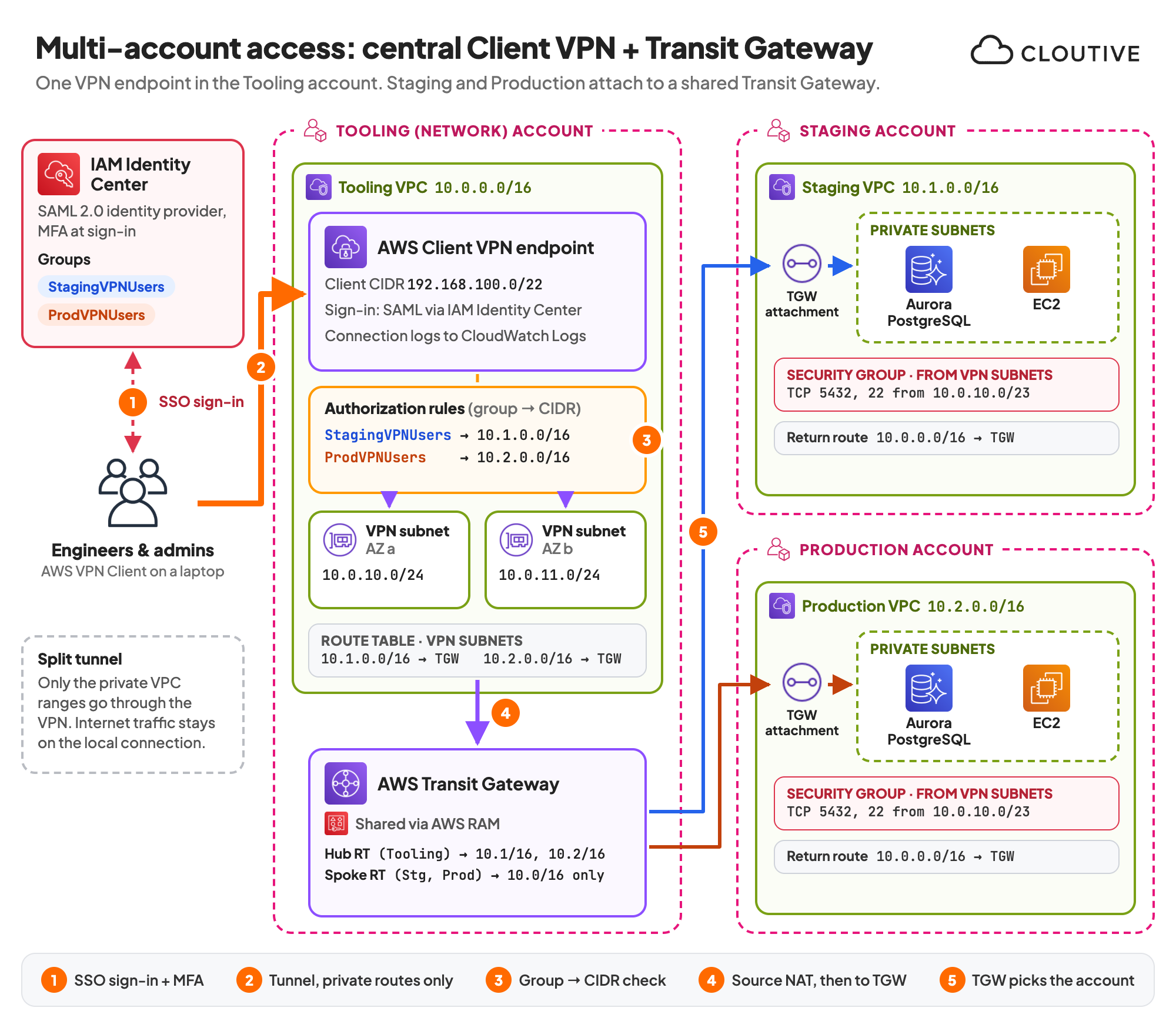
Staging and Production attach their VPCs to the Transit Gateway in the Tooling account, which is shared with them through AWS Resource Access Manager (RAM). VPN users connect into the Tooling VPC, and the Transit Gateway routes their traffic on to the other VPCs. This hub-and-spoke design is the approach AWS recommends for connecting many VPCs.
How a connection flows
The numbers match the diagram.
- The engineer clicks Connect in the AWS VPN Client. A browser opens the IAM Identity Center sign-in, including MFA, and hands a signed SAML assertion with the user’s group IDs back to the client.
- The endpoint pushes only the private routes to the laptop (split tunnel). Internet traffic stays on the local connection.
- For each destination, the endpoint checks its authorization rules to see whether the user’s group may reach that range.
- Traffic leaves through the Client VPN network interface in a Tooling VPN subnet. Client VPN translates the source address to that interface’s IP, and the subnet’s route table sends the packet to the Transit Gateway.
- The Transit Gateway forwards it to the Staging or Production attachment. The target’s security group allows the VPN subnets, and the reply comes back the same way.
Why put the VPN in a central Tooling (network) account?
AWS recommends keeping shared network infrastructure in its own account, often called Network or Shared Services. That account runs no applications and only the platform team can change it, so a mistake in an application account can’t break everyone’s access.
It also keeps the rules in one place. You review one set of authorization rules and one connection log instead of one per account, and adding an account later means a Transit Gateway attachment and some routes. The VPN endpoint itself doesn’t change.
The steps below use AWS CLI commands so every setting is visible. In practice you would deploy this with infrastructure as code (AWS CDK, CloudFormation or Terraform). Account IDs and resource IDs are placeholders.
Step 1: Plan non-overlapping IP ranges
Routing only works if no two networks overlap, so plan the ranges before you build anything:
| Network | CIDR | Notes |
|---|---|---|
| Tooling VPC | 10.0.0.0/16 | VPN subnets 10.0.10.0/24 (AZ a) and 10.0.11.0/24 (AZ b) |
| Staging VPC | 10.1.0.0/16 | |
| Production VPC | 10.2.0.0/16 | |
| VPN client pool | 192.168.100.0/22 | Must not overlap the Tooling VPC or any route on the endpoint |
The client range for Client VPN must be between /22 and /12, and it can’t be changed after the endpoint is created. Part of the range is reserved by the service, so AWS recommends twice as many addresses as the number of concurrent connections you expect. A /22 covers about 500 concurrent users.
Step 2: Create the Transit Gateway and share it
a) Create the Transit Gateway in the Tooling account
Turn on auto-accept shared attachments so the Staging and Production accounts can attach without a manual approval. If you want an approval gate for every new attachment, leave it off and accept attachments in the Tooling account. Turn off the default route table association and propagation if you use separate route tables (step d), which we recommend.
b) Share it with AWS RAM
Share the Transit Gateway with the Staging and Production accounts, or with a whole organizational unit in AWS Organizations. The other accounts can then create attachments without owning the Transit Gateway.
c) Attach each VPC
In the Tooling, Staging and Production accounts, attach the VPC to the shared Transit Gateway. AWS recommends a small dedicated subnet (for example a /28) per Availability Zone for the attachment. The Transit Gateway places its network interfaces there.
# Tooling account: create the Transit Gateway
aws ec2 create-transit-gateway \
  --description "central-tgw" \
  --options AutoAcceptSharedAttachments=enable,DefaultRouteTableAssociation=disable,DefaultRouteTablePropagation=disable

# Share it with the workloads OU (or with individual account IDs)
aws ram create-resource-share \
  --name central-tgw \
  --resource-arns arn:aws:ec2:eu-central-1:111111111111:transit-gateway/tgw-0abc123 \
  --principals arn:aws:organizations::999999999999:ou/o-abc123/ou-ab12-workloads

# Staging and Production accounts: attach the VPC (one small /28 subnet per AZ)
aws ec2 create-transit-gateway-vpc-attachment \
  --transit-gateway-id tgw-0abc123 \
  --vpc-id vpc-0staging \
  --subnet-ids subnet-0tgw-a subnet-0tgw-b
d) Configure the Transit Gateway route tables
The Transit Gateway has to know where each range lives: 10.1.0.0/16 to the Staging attachment, 10.2.0.0/16 to the Production attachment and 10.0.0.0/16 to the Tooling attachment. Route propagation fills these in automatically, or you can add static routes.
Keep Staging and Production apart: with a single default route table, every attached VPC can reach every other one, including Staging to Production. Use two route tables instead. A hub route table, associated with the Tooling attachment, learns the Staging and Production routes. A spoke route table, associated with Staging and Production, learns only the Tooling route. AWS documents this as isolated VPCs with shared services.
# Hub route table: used by the Tooling attachment, learns Staging and Production
aws ec2 create-transit-gateway-route-table --transit-gateway-id tgw-0abc123
aws ec2 associate-transit-gateway-route-table \
  --transit-gateway-route-table-id tgw-rtb-hub --transit-gateway-attachment-id tgw-attach-tooling
aws ec2 enable-transit-gateway-route-table-propagation \
  --transit-gateway-route-table-id tgw-rtb-hub --transit-gateway-attachment-id tgw-attach-staging
aws ec2 enable-transit-gateway-route-table-propagation \
  --transit-gateway-route-table-id tgw-rtb-hub --transit-gateway-attachment-id tgw-attach-prod

# Spoke route table: used by Staging and Production, learns only Tooling
aws ec2 create-transit-gateway-route-table --transit-gateway-id tgw-0abc123
aws ec2 associate-transit-gateway-route-table \
  --transit-gateway-route-table-id tgw-rtb-spoke --transit-gateway-attachment-id tgw-attach-staging
aws ec2 associate-transit-gateway-route-table \
  --transit-gateway-route-table-id tgw-rtb-spoke --transit-gateway-attachment-id tgw-attach-prod
aws ec2 enable-transit-gateway-route-table-propagation \
  --transit-gateway-route-table-id tgw-rtb-spoke --transit-gateway-attachment-id tgw-attach-tooling
Step 3: Configure AWS Client VPN in the Tooling account
a) Single sign-on with IAM Identity Center
Client VPN supports SAML 2.0 federated authentication, next to Active Directory and certificate-based mutual authentication. With IAM Identity Center as the identity provider:
- In IAM Identity Center, add a custom SAML 2.0 application for the VPN client (ACS URL
http://127.0.0.1:35001, audienceurn:amazon:webservices:clientvpn) and map thememberOfattribute to${user:groups}, so the user’s group IDs travel in the SAML assertion. - Download the application’s SAML metadata and create an IAM SAML identity provider from it in the Tooling account, the same account as the endpoint.
- Optionally, add a second application for the Client VPN self-service portal, where users download the client and their configuration file.
MFA is enforced by IAM Identity Center at sign-in. Client VPN still needs a server certificate in AWS Certificate Manager, even with SAML authentication.
b) Split tunnel
With split tunnel on, the endpoint only pushes its own routes (10.0.0.0/16, 10.1.0.0/16, 10.2.0.0/16) to the laptop, never 0.0.0.0/0. Internet traffic stays on the user’s own connection. That saves VPN bandwidth, means VPN users don’t need a NAT gateway in the Tooling VPC, and keeps video calls from detouring through AWS. If you need all traffic inspected, use full tunnel instead and plan for a NAT gateway and firewall in the Tooling VPC.
c) Associate subnets in two Availability Zones
Associate the endpoint with one VPN subnet per Availability Zone (10.0.10.0/24 and 10.0.11.0/24), so the VPN stays up if one zone has problems. Each association is billed per hour. The security group on the association must allow outbound traffic to the Staging and Production ranges.
d) Client VPN routes
Add a Client VPN route for each destination range. The target is the associated subnet, not the Transit Gateway: the subnet’s VPC route table takes the packet from there (step 4). Add the same routes for every associated subnet, otherwise access becomes intermittent.
e) Authorization rules per group
Each destination needs an explicit authorization rule; anything else is denied. With IAM Identity Center, use the group ID from the group’s details page, not the display name.
| Group | Destination | Result |
|---|---|---|
| StagingVPNUsers | 10.1.0.0/16 | Staging only |
| ProdVPNUsers | 10.2.0.0/16 | Production only |
| All users (optional) | 10.0.0.0/16 | Shared tools in the Tooling VPC |
Client VPN uses longest-prefix matching for these rules. Even with a broad “all users → 10.0.0.0/8” rule, only ProdVPNUsers reach 10.2.0.0/16, because the more specific rule wins. Rules that match what each group actually needs are still easier to review.
# Tooling account: Client VPN endpoint with SAML sign-in, split tunnel and connection logs
aws ec2 create-client-vpn-endpoint \
  --client-cidr-block 192.168.100.0/22 \
  --server-certificate-arn arn:aws:acm:eu-central-1:111111111111:certificate/1234abcd-12ab-34cd-56ef-1234567890ab \
  --authentication-options 'Type=federated-authentication,FederatedAuthentication={SAMLProviderArn=arn:aws:iam::111111111111:saml-provider/aws-client-vpn}' \
  --connection-log-options Enabled=true,CloudwatchLogGroup=/aws/client-vpn/central \
  --split-tunnel \
  --vpc-id vpc-0tooling \
  --security-group-ids sg-0vpn-endpoint

# One subnet association per Availability Zone
aws ec2 associate-client-vpn-target-network --client-vpn-endpoint-id cvpn-endpoint-0abc --subnet-id subnet-0vpn-a
aws ec2 associate-client-vpn-target-network --client-vpn-endpoint-id cvpn-endpoint-0abc --subnet-id subnet-0vpn-b

# Routes target the associated subnet (repeat for subnet-0vpn-b, and for 10.2.0.0/16)
aws ec2 create-client-vpn-route --client-vpn-endpoint-id cvpn-endpoint-0abc \
  --destination-cidr-block 10.1.0.0/16 --target-vpc-subnet-id subnet-0vpn-a

# Authorization uses the IAM Identity Center group ID, not the group name
aws ec2 authorize-client-vpn-ingress --client-vpn-endpoint-id cvpn-endpoint-0abc \
  --target-network-cidr 10.2.0.0/16 \
  --access-group-id a1b2c3d4-5678-90ab-cdef-EXAMPLE11111 \
  --description "Production: ProdVPNUsers only"
Step 4: Route tables in the VPCs
Tooling VPC (VPN subnets)
10.1.0.0/16→ Transit Gateway (Staging)10.2.0.0/16→ Transit Gateway (Production)
Staging and Production VPCs (return path)
10.0.0.0/16→ Transit Gateway
Client VPN translates the source address of client traffic to its network interface in the Tooling VPC. Replies therefore go to a 10.0.x.x address, not to the 192.168.100.0/22 client pool, so the route back to the Tooling VPC range is the one that matters. If connections time out, check this route first.
# Tooling account: the VPN subnets send the spoke ranges to the Transit Gateway
aws ec2 create-route --route-table-id rtb-0vpn-subnets \
  --destination-cidr-block 10.1.0.0/16 --transit-gateway-id tgw-0abc123
aws ec2 create-route --route-table-id rtb-0vpn-subnets \
  --destination-cidr-block 10.2.0.0/16 --transit-gateway-id tgw-0abc123

# Staging and Production accounts: return route to the Tooling VPC
aws ec2 create-route --route-table-id rtb-0prod-private \
  --destination-cidr-block 10.0.0.0/16 --transit-gateway-id tgw-0abc123
Step 5: Security groups in the target accounts
On each resource, allow only the ports people need, from the Tooling VPN subnets (10.0.10.0/23 covers both):
| Allowed inbound | Protocol / port | Source |
|---|---|---|
| SSH | TCP 22 | 10.0.10.0/23 |
| PostgreSQL | TCP 5432 | 10.0.10.0/23 |
A rule for the VPN client pool (192.168.100.0/22) has no effect, because packets arrive with the address of the VPN network interface. Avoid broad sources like 10.0.0.0/8 in production: they also let in everything else in the Tooling VPC.
The trade-off is that the target account sees the VPN subnet, not the individual user. Who may reach which network is enforced by the authorization rules, and the per-user audit trail lives in the Client VPN connection logs.
# Production account: PostgreSQL from the Tooling VPN subnets only
aws ec2 authorize-security-group-ingress --group-id sg-0aurora-prod \
  --protocol tcp --port 5432 --cidr 10.0.10.0/23
Implementation checklist
- Plan non-overlapping ranges for every VPC and the VPN client pool.
- Create the Transit Gateway in the Tooling account and share it with AWS RAM.
- Attach the Tooling, Staging and Production VPCs, using dedicated attachment subnets.
- Set up the hub and spoke Transit Gateway route tables.
- Create the SAML application in IAM Identity Center and the IAM SAML provider in the Tooling account.
- Create the Client VPN endpoint (split tunnel, connection logging) and associate two VPN subnets.
- Add Client VPN routes (target: the associated subnets) and authorization rules per group.
- Add VPC routes: Tooling to the Transit Gateway for the spoke ranges, and the spokes back to the Tooling range.
- Update the security groups in the target accounts.
Testing connectivity
- Download the client configuration file from the Client VPN console or the self-service portal, and import it into the AWS VPN Client.
- Connect and sign in through the browser window that opens.
- Try SSH or a database connection to a private IP address, for example
10.1.x.xin Staging. Ping only works if the target security group allows ICMP. - Check that internet traffic doesn’t go through the VPN: your public IP address should not change.
- Sign in as a user who is not in ProdVPNUsers and confirm that Production is unreachable.
- To debug, use the Client VPN connection logs and VPC Flow Logs on the VPN subnets and the target subnets.
Tip: RDS and Aurora endpoints that aren’t publicly accessible resolve to private IP addresses from anywhere, so they work through the tunnel without extra DNS setup. For Route 53 private hosted zones, set the endpoint’s DNS server to the Tooling VPC resolver (the VPC range plus two, here 10.0.0.2) and associate the zones with the Tooling VPC.What does it cost?
An example for 10 engineers in eu-central-1 (Frankfurt), using on-demand prices from the AWS Price List in October 2026, excluding VAT and data transfer:
| Item | Price | Example per month |
|---|---|---|
| Client VPN subnet association | $0.10 per hour | 2 AZs × 730 h ≈ $146 |
| Client VPN connection | $0.05 per hour | 10 users × 8 h × 21 days = 1,680 h ≈ $84 |
| Transit Gateway VPC attachment | $0.06 per hour | 3 VPCs × 730 h ≈ $131 |
| Transit Gateway data processing | $0.02 per GB | Depends on traffic |
| Total | ≈ $361 + data |
For comparison, one endpoint per account (three endpoints, two associations each) costs about $438 a month in associations alone, before any connection hours, and gives you three sets of rules to maintain. Associations cost the same whether one person is connected or fifty, so sharing one endpoint is where most of the saving comes from. If your VPCs are already attached to a Transit Gateway for other traffic, those attachments add nothing to the VPN bill. See AWS VPN pricing and Transit Gateway pricing for your Region.
Common pitfalls
- Overlapping ranges between VPCs, or between a VPC and the VPN client pool.
- No return route in the Staging or Production VPC.
- One default Transit Gateway route table, so Staging can reach Production.
- Security groups that allow the client pool instead of the VPN subnets.
- Group names instead of IAM Identity Center group IDs in authorization rules.
- Client VPN routes that exist for only one of the associated subnets.
- Routes added while users are connected. With split tunnel, routes are pushed when the connection starts, so users have to reconnect.
Conclusion
Bastions, IP allow-lists and per-account VPNs work fine with one or two accounts. Each new account adds another set to maintain. With a central Client VPN, IAM Identity Center sign-in and a Transit Gateway shared through AWS RAM, all engineer access goes through one logged entry point controlled by group membership. A new account needs an attachment, a few routes and an authorization rule.
Need a hand? Cloutive’s DevOps engineers and Solutions Architect design and build multi-account AWS networks like this for our clients. See our DevOps as a Service or get in touch.
References
- AWS whitepaper: Building a scalable and secure multi-VPC network infrastructure (Transit Gateway)
- AWS Security Blog: Authenticate AWS Client VPN users with AWS IAM Identity Center
- AWS Client VPN: SAML 2.0-based federated authentication
- AWS Client VPN: authorization rules
- AWS Client VPN: rules and best practices
- AWS Transit Gateway design best practices
- AWS Prescriptive Guidance: Transit Gateway with AWS RAM